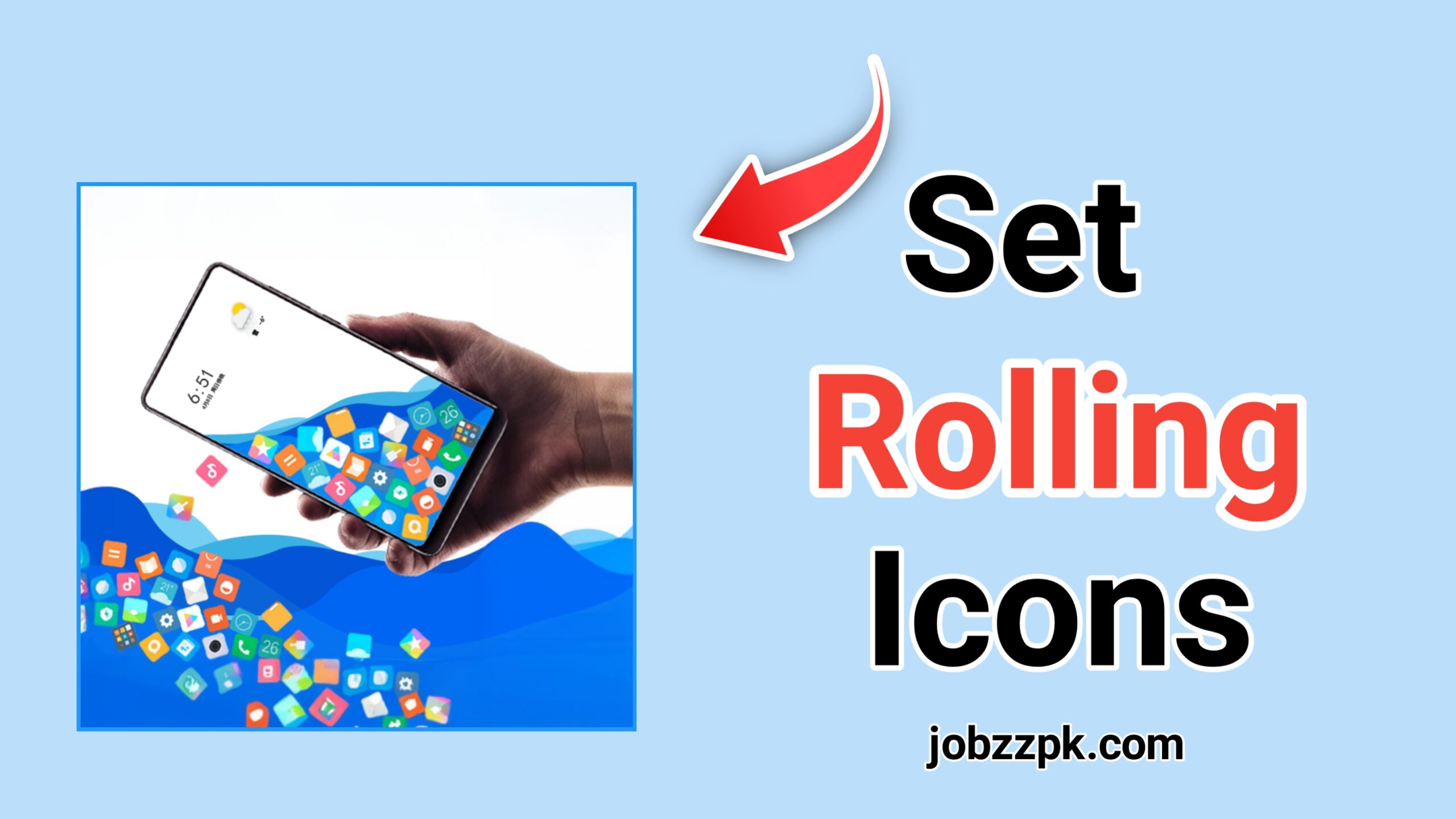
Customizing your Android home screen has become more than just changing wallpapers or applying icon packs. Today, users want movement, interaction, and a more personalized touch. This is where the Rolling Icons app steps in. It brings your home screen to life by turning regular icons into animated, rolling elements that react to your gestures. If you’re looking for a fun yet simple way to refresh your Android experience, this guide will walk you through everything you need to know.
What Is Rolling Icons?
Rolling Icons is a lightweight customization app available for Android. Instead of keeping your app icons static, it gives them dynamic movement. When you unlock your phone or swipe across your home screen, the icons roll, bounce, and move naturally as if they were tiny objects responding to gravity.
What makes Rolling Icons unique is that it adds animation without making your phone slow or cluttered. It’s simple, playful, and works smoothly on most devices.
Key Features of Rolling Icons
- Animated App Icons
The main feature is the rolling animation. Icons move around realistically, making the home screen feel interactive and alive.
- Customizable Shapes and Styles
You can change:
- Icon size
- Icon shape
- Icon spacing
- Animation behavior
This lets you design a layout that feels personal.
- Battery-Friendly
Even with animations running, the app uses very little battery. It reduces activity when you’re not interacting with the screen.
- Works With Many Launchers
The app supports most Android launchers, including popular ones like Nova, POCO, and Lawnchair.
How to Install Rolling Icons
Step 1: Download the App
Go to Google Play Store, search for Rolling Icons, and install it.
Step 2: Open and Grant Permissions
The app will ask for:
- Display over other apps
- Access to manage home screen behavior
These permissions are necessary to allow icons to animate properly.
Setting Up Rolling Icons for the First Time
When you open the app for the first time, you’ll see setup options.
- Choose Your Animation Type
Rolling Icons offers multiple motion styles:
- Roll
- Bounce
- Float
- Slide
Try each one to see which animation suits your home screen theme.
- Adjust Sensitivity
You can control how strongly icons react when you swipe. Some users prefer very light movement, while others enjoy energetic bouncing effects.
- Customize Icon Layout
Here you can change:
- Icon size
- Number of rows/columns
- Icon arrangement
The goal is to balance visual style with usability.
How to Customize Your Home Screen Aesthetically
Pick the Right Wallpaper
Since icons move dynamically, wallpapers with clean or subtle backgrounds look best. Minimal wallpapers help keep the animations noticeable without feeling too busy.
Match Your Launcher Theme
If you’re using a custom launcher, choose a theme that blends well with Rolling Icons. A smooth theme enhances the animated look.
Use Widgets Smartly
Avoid loading your home screen with too many widgets. A cluttered screen reduces the impact of the moving icons.
Troubleshooting Common Problems
- Animations Aren’t Working
Check:
- Permissions are enabled
- Your launcher supports overlays
- You restarted your device
- Lag or Stutter
If animations feel slow:
- Reduce animation speed
- Increase icon spacing
- Disable heavy widgets
- Launcher Incompatibility
If Rolling Icons doesn’t work perfectly, switch to launchers known to support animations well, such as Nova Launcher.
Are Rolling Icons Safe to Use?
Yes, Rolling Icons is generally safe to use. The app does not require access to your personal data, photos, contacts, or messages. It only needs basic permissions such as “Display Over Other Apps” and home screen access so it can animate your icons. These permissions are normal for customization apps. Just make sure to download it from the official Google Play Store.
Conclusion
Rolling Icons is a refreshing and enjoyable way to customize your Android home screen. It adds life to your device without compromising performance. Whether you love playful animations or simply want a different look, the app offers a unique style that stands out from typical icon packs and themes. With easy setup and plenty of customization options, it’s a great tool for anyone bored with a traditional home screen.